CamGrader Personal removes your monthly scan limit and gives you unlimited student scans. Here's what each tier gets, and how to subscribe.
Without an account, you get a one-time trial of 25 scans over 7 days, per device. Create an account for a monthly allowance instead, or subscribe for unlimited scans.
Once you're signed in, you get 50 scans every calendar month, no purchase required. Answer key scans don't count against this limit on any tier.
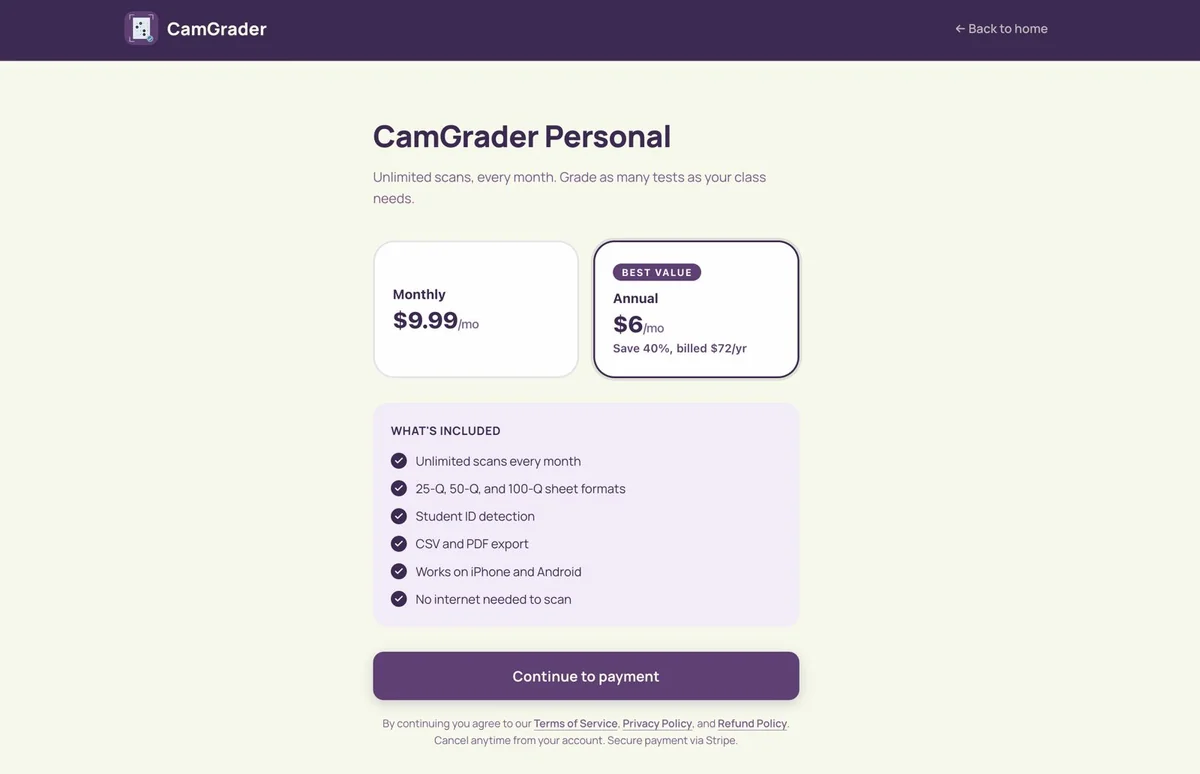
Unlimited scans every month, plus 25-Q, 50-Q, and 100-Q sheet formats, Student ID detection, and CSV and PDF export - on iPhone and Android, with no internet needed to scan. $9.99/month, or $6/month billed annually at $72/year.
When you're on Guest Mode or signed in without a subscription, you'll see your remaining scans at the top of the scan screen. Tap the upgrade prompt, or go to Settings and tap "Upgrade to Personal."
The app opens the CamGrader Personal page in your browser, showing monthly and annual pricing alongside what's included. Tap Continue to payment.
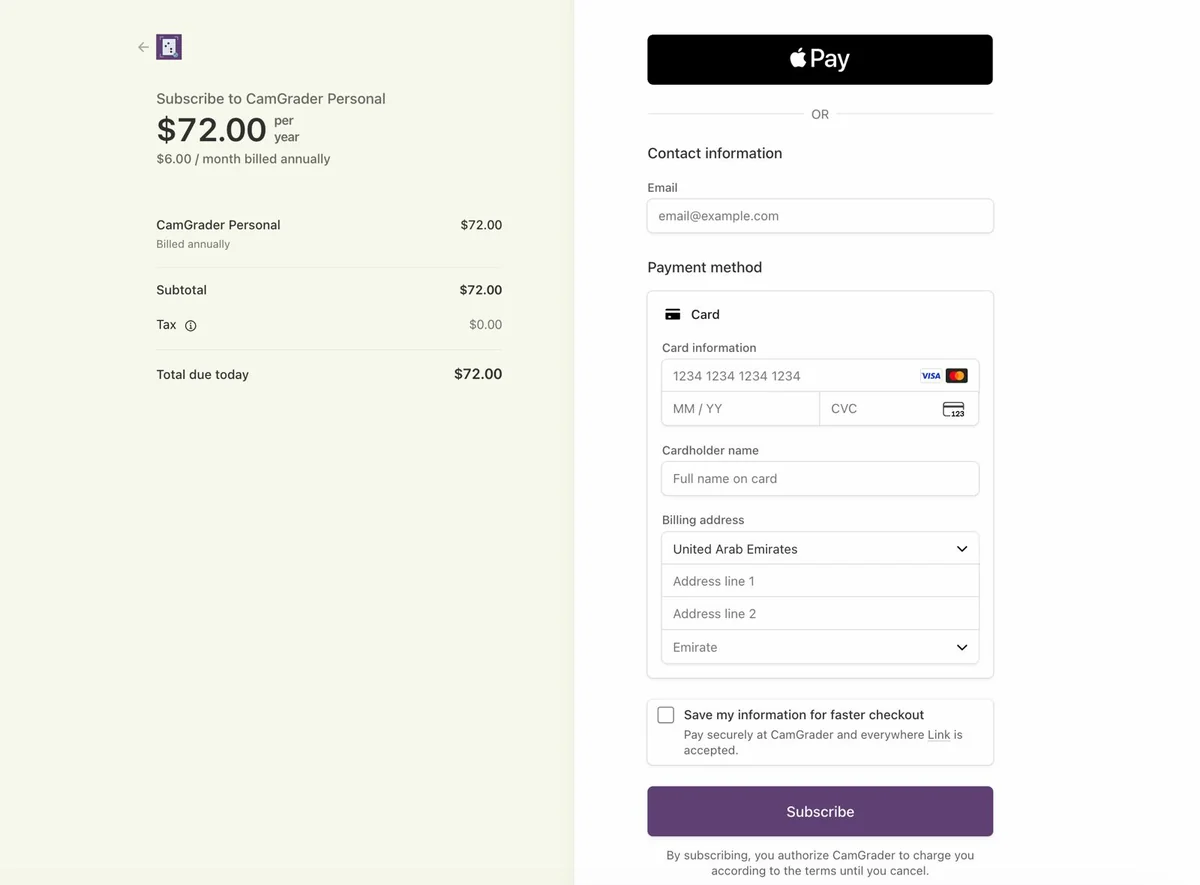
This opens Stripe's secure checkout, where you enter the email you'll sign into the app with and your card details, then tap Subscribe. Use the same email address you plan to sign in with.
Open CamGrader, go to Settings, and tap "Sign In." Enter the same email address you used at checkout - you'll get a one-time code by email to complete sign-in.
Once signed in, Settings will show your subscription as active, and the scan counter will no longer appear on the scan screen.
If your subscription isn't showing as active after signing in, contact us and we'll sort it out.
Contact us