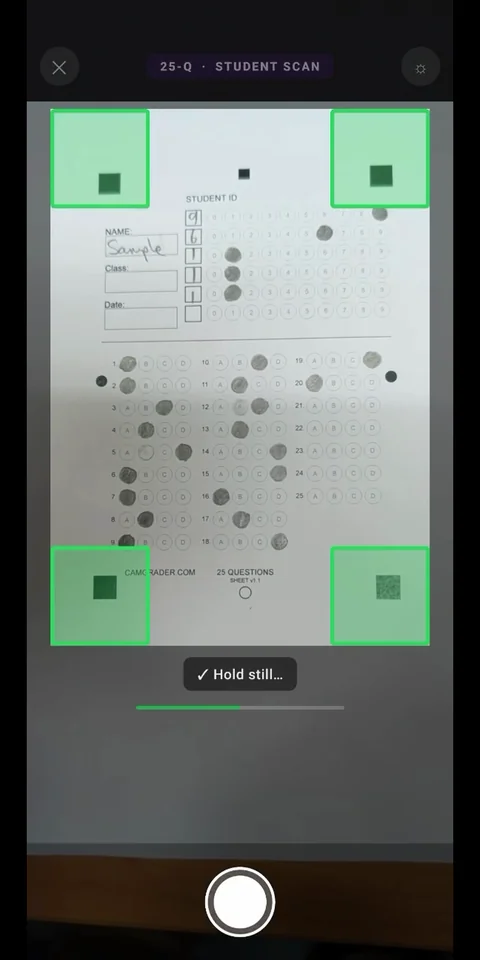
CamGrader has three sheet sizes: 25Q, 50Q, and 100Q. You don't need an exact match for your test length. Pick any sheet size that covers your question count.
Look at your test and note how many questions it has. That number determines the minimum sheet size you need.
Use the 25Q sheet for tests up to 25 questions. Use 50Q for up to 50 questions. Use 100Q for up to 100 questions. You can also use a larger sheet - extra bubbles are simply left blank.
When you create a key that's shorter than the sheet you picked, CamGrader shows a quick confirmation before saving, so you can double check you meant to leave the extra questions blank.
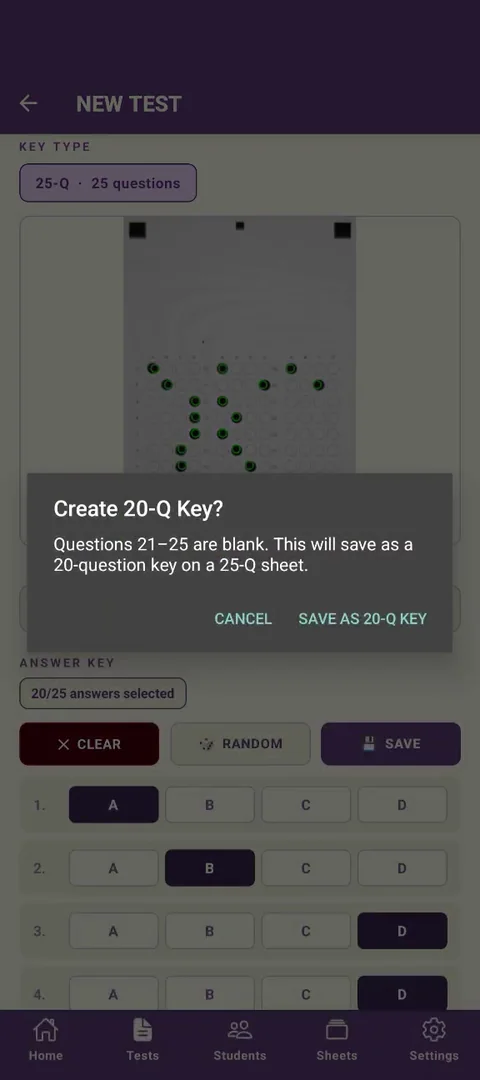
If you use a 25Q sheet for a 20-question test, students fill questions 1-20 and leave 21-25 blank. CamGrader only grades the questions defined in the answer key and ignores the rest - after scanning, the results screen shows scores out of the key length (20), not the sheet's full capacity (25).
CamGrader detects a sheet from its four corner markers, not from how many bubbles are actually filled in. A 20-question key on a 25Q sheet scans exactly like any other sheet - there's nothing extra to set up for the unused rows.