CamGrader provides ready-to-print bubble sheets in multiple formats and darkness levels. Here's how to get the right one for your printer.
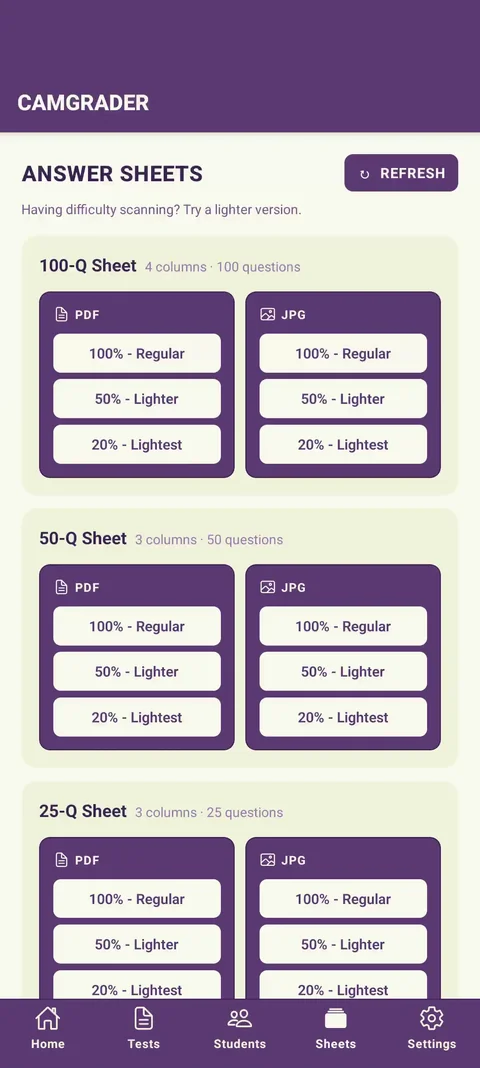
From the home screen, tap the Sheets tab. Sheets are grouped by question count - 25Q, 50Q, or 100Q - pick the smallest format that covers your test (a 20-question test can use the 25Q sheet).
Each format comes in three darkness levels: Regular, Lighter, and Lightest. Regular works for most printers - switch to Lighter or Lightest only if your printer runs dark and bubbles print too bold.
Tap PDF or JPG under the darkness level you want to download it. PDF is best for printing directly - JPG works if you need to share the sheet digitally or print from a service that doesn't accept PDF.
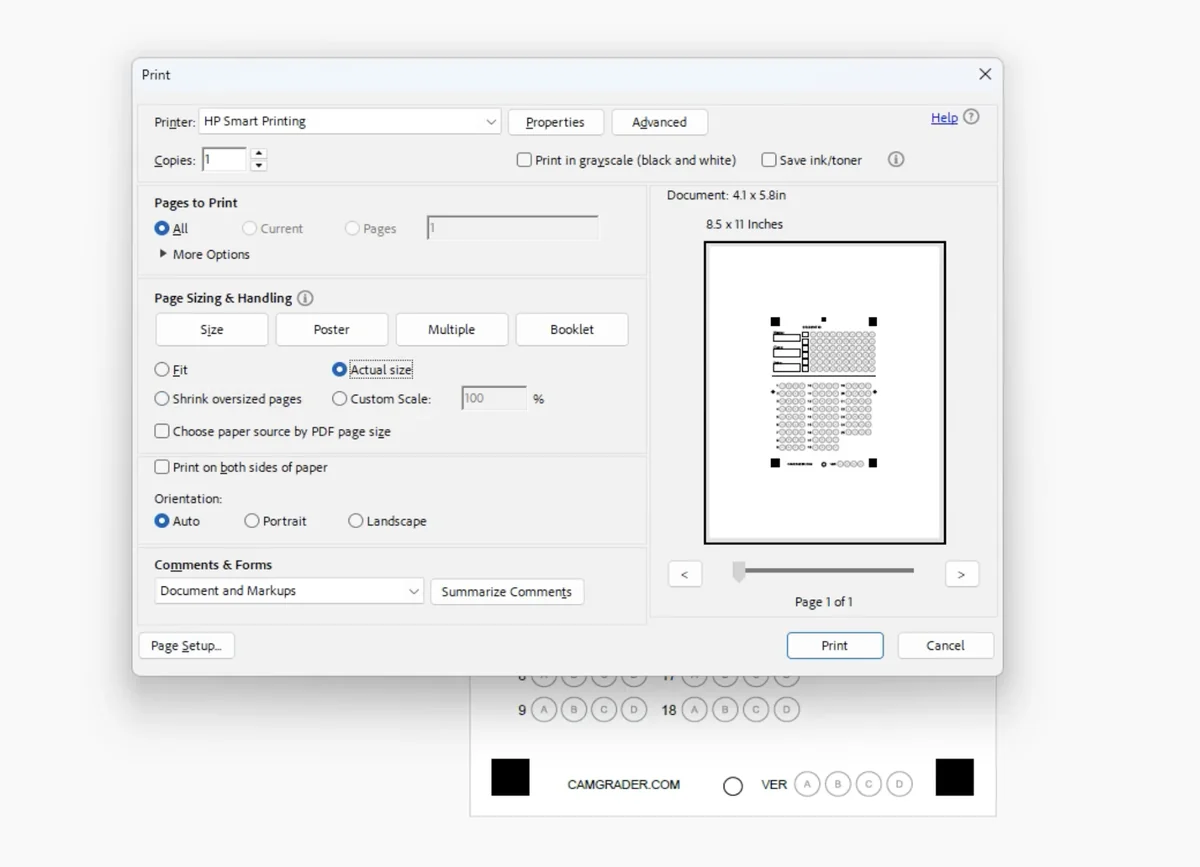
This is the most important step. Open the file and print at 100% scale with no page fitting or shrink-to-fit. Scaling the sheet changes the bubble positions and will cause detection errors.
It's fine to paste the sheet image into Word, Google Docs, or another document to add a class name, date, or label. Just don't shrink or stretch the image when you do, and keep anything you add well away from the sheet's edges and corners. CamGrader uses markers in those corners to line up the page, and text or graphics placed too close to them can be mistaken for a marker and cause scanning errors.