Every bubble sheet has a Student ID section so results can be matched to the right student. Here's how to fill it in and how to fix it if something goes wrong.
The Student ID section accepts any number up to 6 digits - there's no need to pad it with leading zeros. It can be an actual student ID number issued by your school, or, if your school's IDs don't fit in 6 digits, a serial number you assign yourself offline (for example, an alphabetical class roster number).
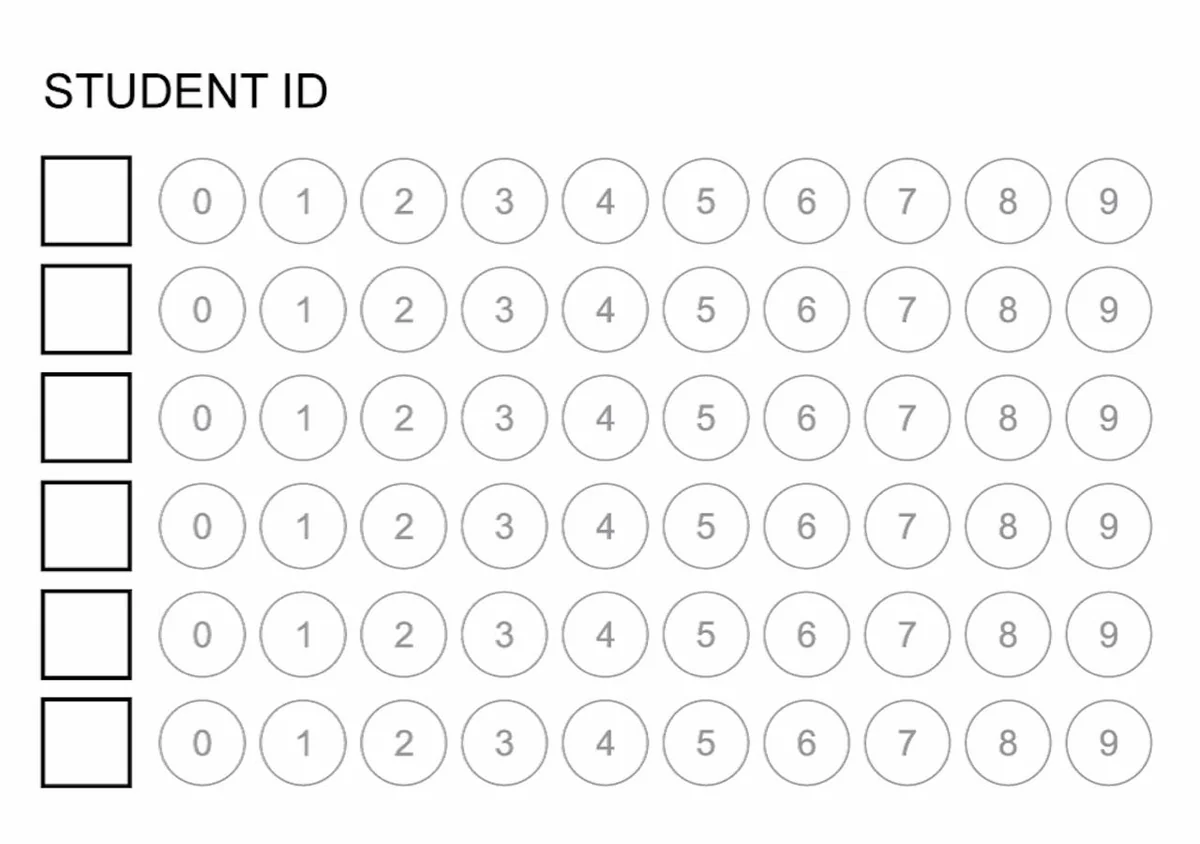
If the ID grid is left blank, filled in incorrectly, or otherwise can't be read during a scan, CamGrader assigns the result a placeholder "null ID" so nothing gets lost - you can still see and grade the sheet, you'll just need to assign it to the right student afterward.
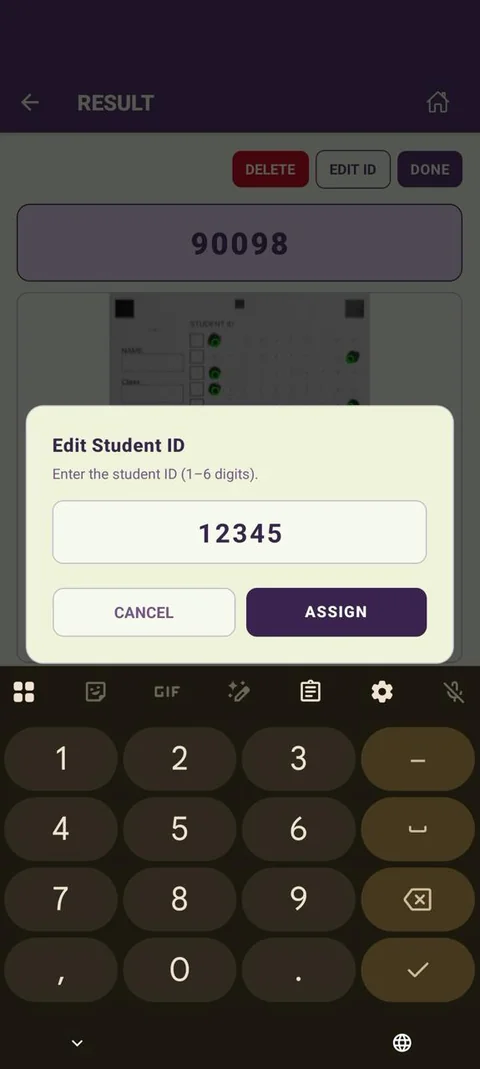
Open the student's result from the test's results list. If the ID needs to be corrected - or it's showing a null ID - tap Edit ID and enter the correct number. This works the same way whether you're fixing a simple mistake or assigning a real ID to a null-ID result.
Once corrected, the result is linked to that student going forward, including in any exports or reports.