Export grades to CSV
Results & Export · 2 min
Once all sheets are scanned, you can export the full class results as a CSV file. The file opens in Google Sheets, Excel, Canvas, or any gradebook that accepts CSV.
Step 1: Open the test results
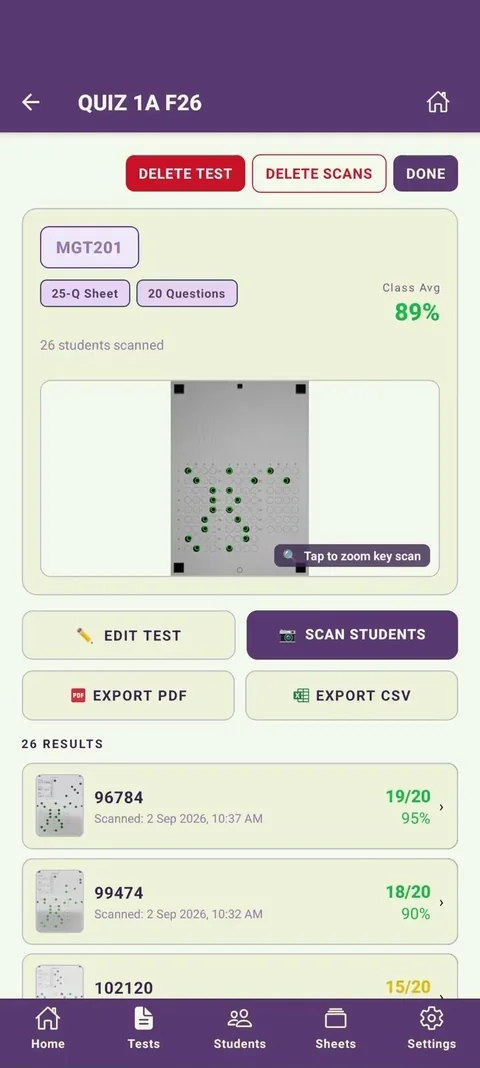
From the home screen, tap the test you want to export. The class results list shows all scanned students.
Screenshot: Class results screen showing a list of all scanned students, their scores, and the class average at the top.
Step 2: Tap the Export button
Tap the Share or Export button, usually a share icon in the top right corner of the test screen.
Screenshot: Test results screen with the share/export icon highlighted in the navigation bar (top right). An arrow or callout points to the icon.
Step 3: Choose "Export as CSV"
A menu appears with export options. Tap "Export as CSV" to generate the file.
Screenshot: Export options bottom sheet or modal showing "Export as CSV" and "Export Student PDFs" as options. "Export as CSV" is highlighted.
Step 4: Open or save the file
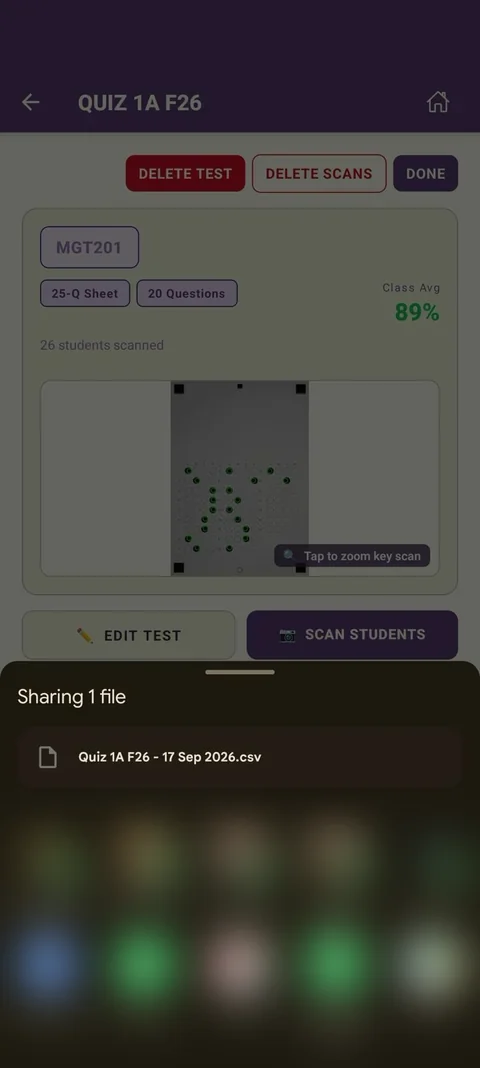
Your device's share sheet appears. You can open the file directly in Google Sheets, save it to Files, AirDrop it to your computer, or share it via email.
Screenshot: iOS or Android share sheet showing options including "Open in Google Sheets", "Save to Files", and "Mail". Google Sheets is highlighted as a common choice.
What's in the CSV
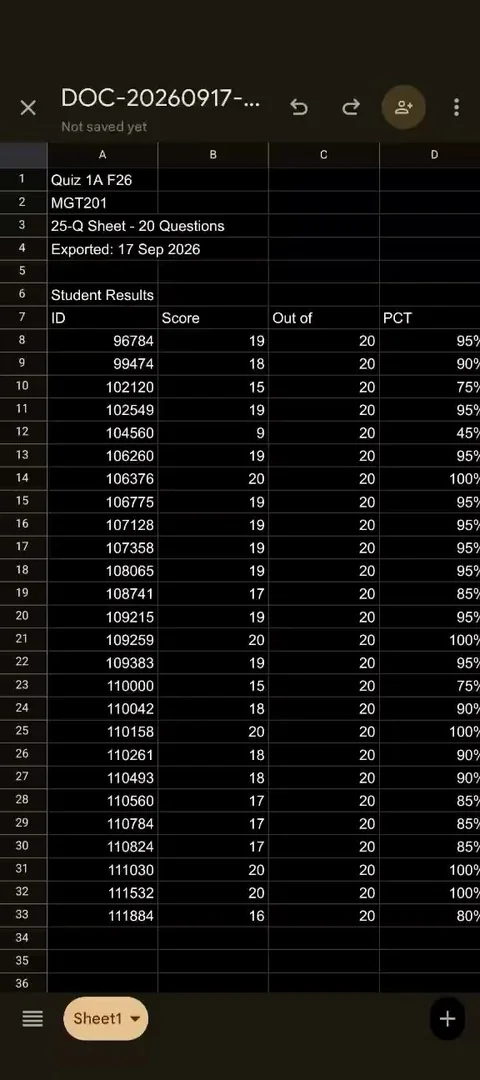
The CSV includes one row per student with their student ID, score (number of correct answers), total questions, percentage, and the answer they gave for each question. Column headers are on the first row.
Screenshot: The CSV file open in Google Sheets, showing columns: Student ID, Score, Total, Percentage, Q1, Q2, Q3 ... The first few rows of data are visible with realistic-looking student IDs and scores.