CamGrader CamGrader ← Results & Export

Export student results

Results & Export · 2 min

For each student, you can export a PDF that includes their scanned answer sheet thumbnail and a complete per-question breakdown. Useful for parent conferences, student feedback, or your own records.

Step 1: Open the test and tap a student

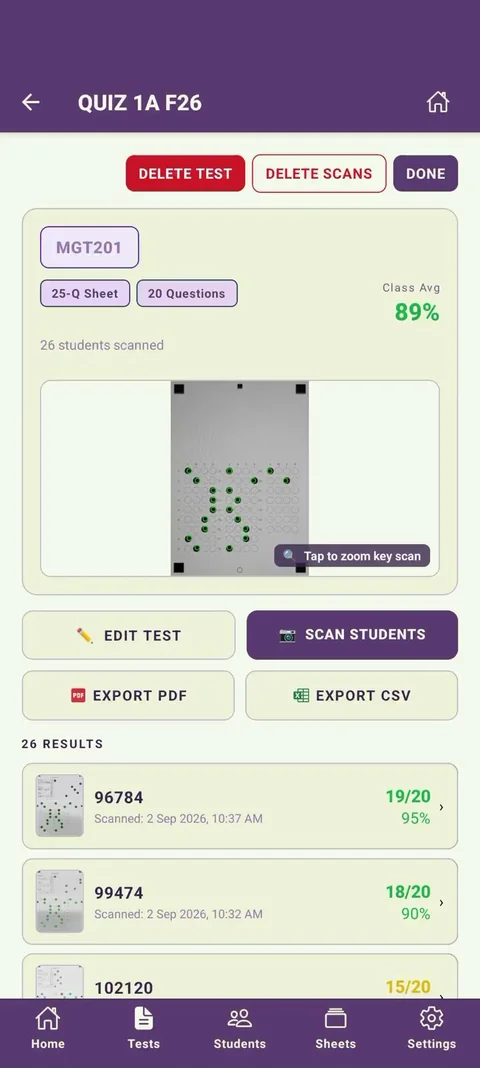
From the class results list, tap any student's row to open their individual result screen.

Screenshot: Class results list with one student row highlighted (tapped). The student's name/ID and score are visible in the row.

Step 2: Review the student's result

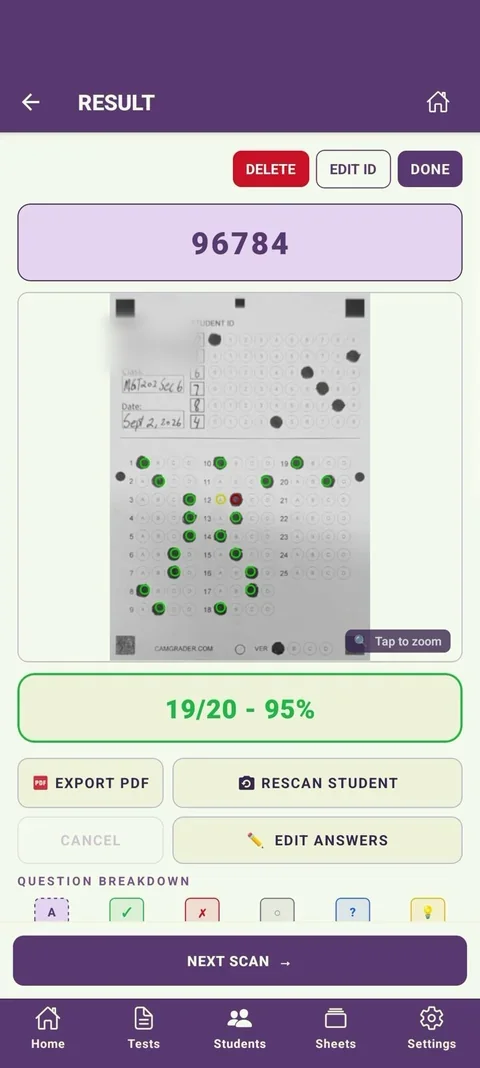
The student detail screen shows their score, the thumbnail of their scanned answer sheet, and a question-by-question breakdown. Verify this looks correct before exporting.

Screenshot: Student detail screen showing the student's name, total score (e.g. "17 / 25 · 68%"), a thumbnail image of their answer sheet on the left, and a per-question list on the right or below.

Step 3: Tap "Export PDF"

Tap the Export PDF button (or the share icon and choose "Export as PDF"). CamGrader generates the PDF on-device.

Screenshot: Student detail screen with the "Export PDF" button visible, either as a dedicated button at the bottom of the screen or as an option inside a share/export menu.

Step 4: Preview the PDF

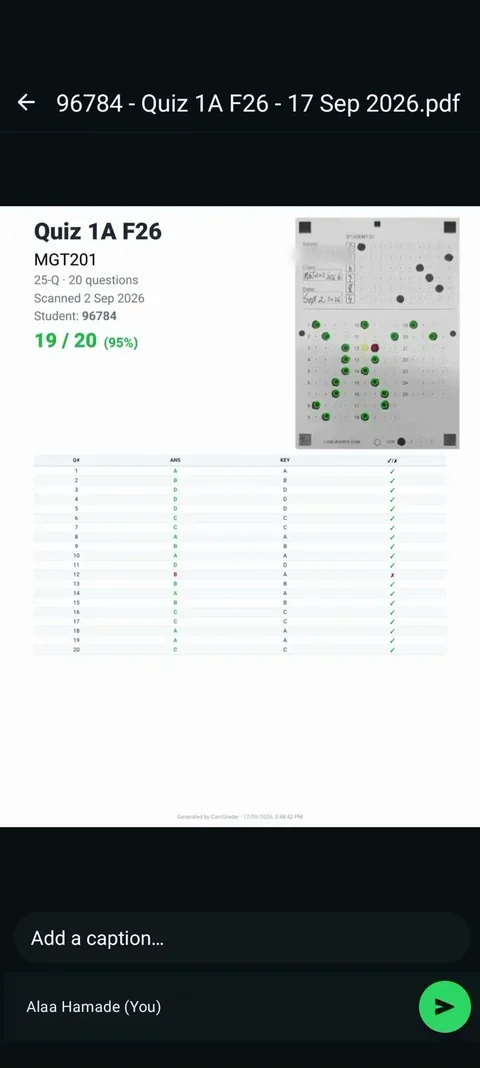
The generated PDF includes: the student's name or ID, the test name, their overall score and percentage, a thumbnail of their scanned bubble sheet with correct/incorrect answers marked, and a numbered list of every question with their answer and the correct answer.

Screenshot: PDF preview on device showing the CamGrader header, student name and score at the top, a thumbnail of the answer sheet in the upper half, and a two-column question breakdown below (Q1: student answered B, correct was B, correct; Q2: student answered A, correct was C, incorrect).

Step 5: Save or share the PDF

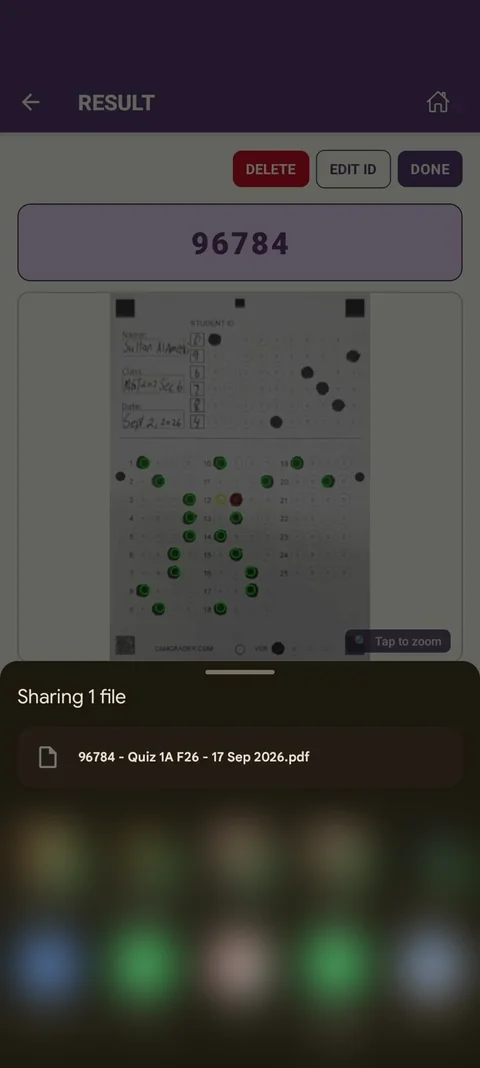
Use the share sheet to save to Files, send via email, AirDrop to your computer, or print directly. The PDF is self-contained and requires no internet connection to open.

Screenshot: iOS or Android share sheet showing the generated PDF being shared. Options visible include Save to Files, Mail, AirDrop, and Print.

Still need help?

Can't find what you're looking for? We're happy to help.

Contact us