Most scans need no correction at all. But if a question comes back genuinely ambiguous, CamGrader flags it instead of guessing - here's a real result, walked through from a flagged scan to a corrected one.
When a question comes back blue (an ambiguous mark that needs a manual check) or yellow (possible glare), CamGrader adds a review banner to the result and holds those questions back from a final grade until they're resolved. This student's sheet came back 17/20 (85%) with two questions still needing a look.
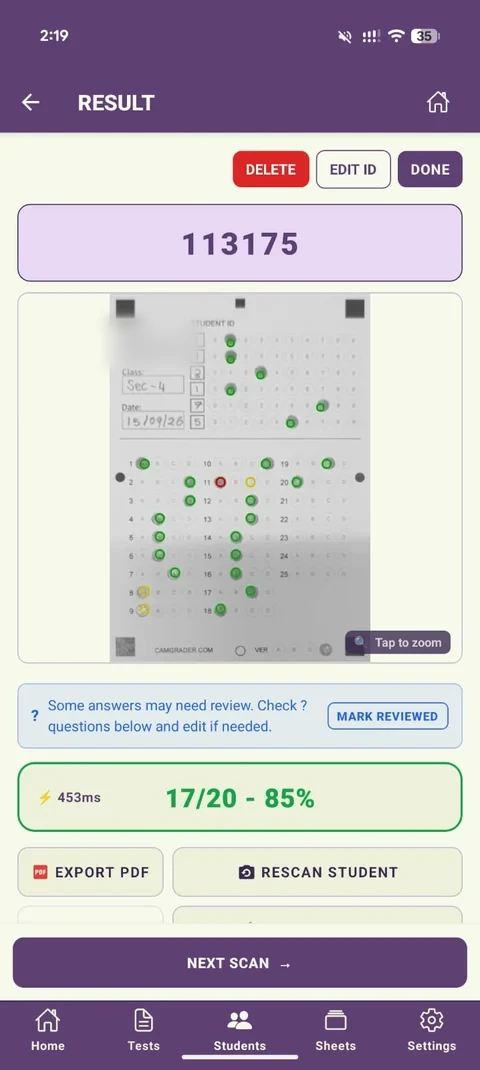
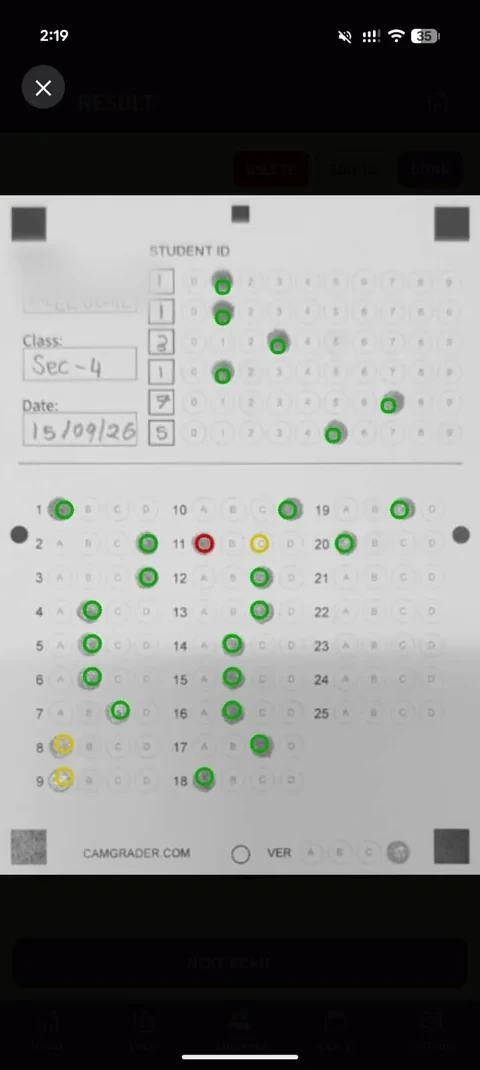
Tap the scan to zoom in on the sheet itself. The Question Breakdown below it shows exactly which questions are flagged - Q8 and Q9 here both came back blue, meaning CamGrader picked up a mark but wasn't confident enough to grade it automatically.
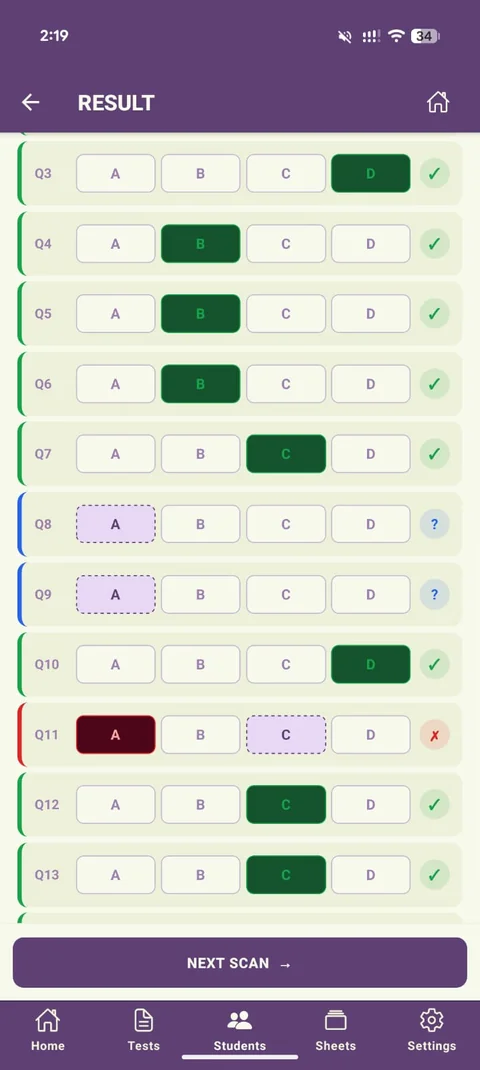
Tap Edit Answers to put the breakdown into edit mode, then tap the correct bubble for each flagged question. The bubble fills in solid green to confirm your selection - here, both Q8 and Q9 are being set to A.
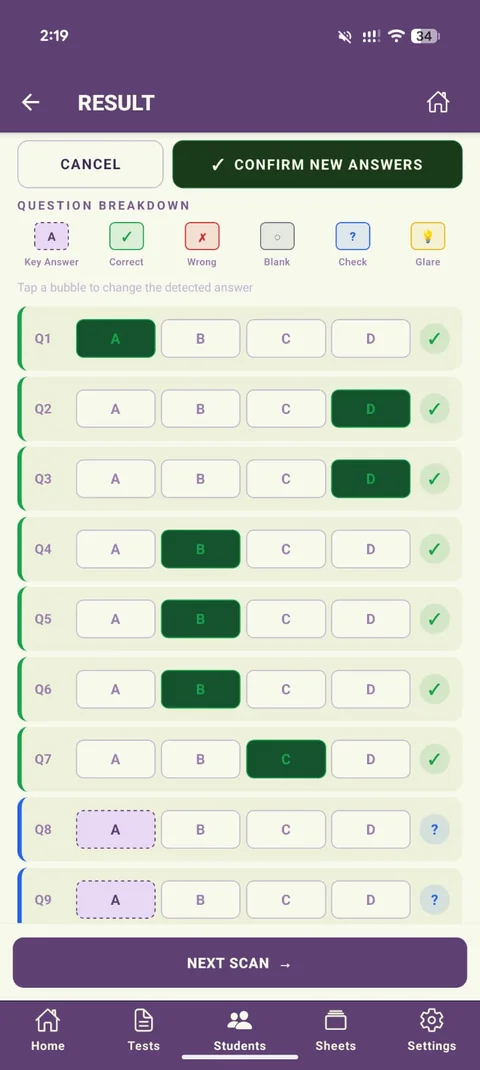
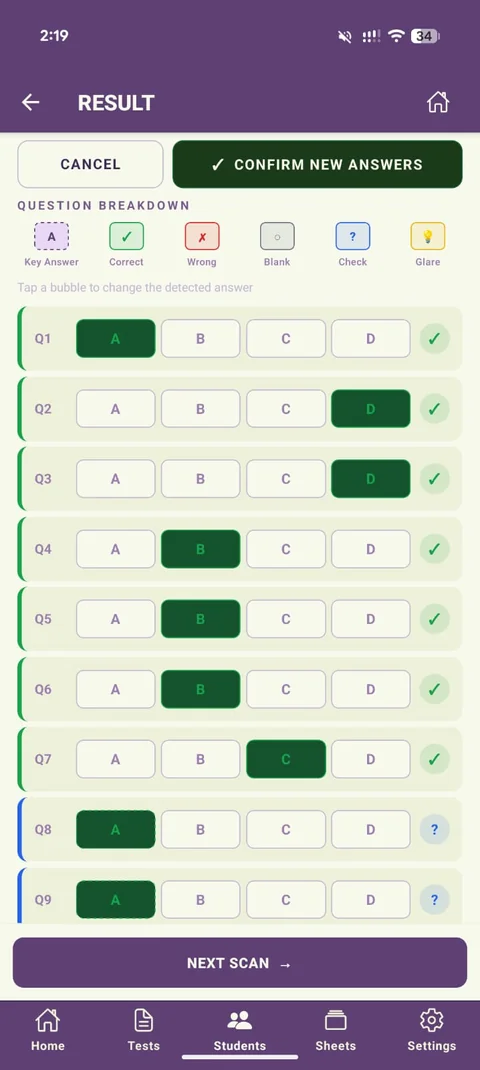
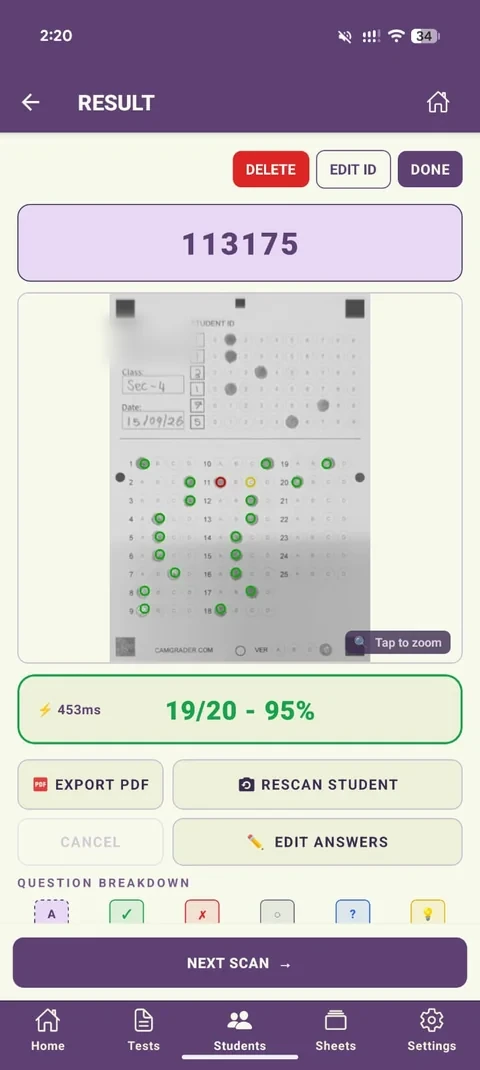
Tap Confirm New Answers to save. The review banner clears and the score recalculates immediately - this result went from 17/20 (85%) to 19/20 (95%) once both flagged questions were resolved. You can always tap Edit Answers again later if something needs another look.
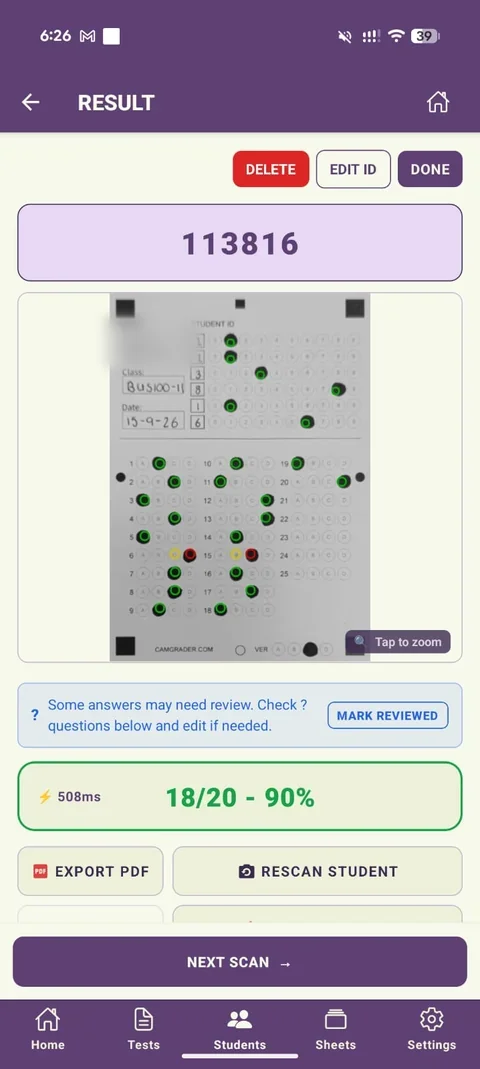
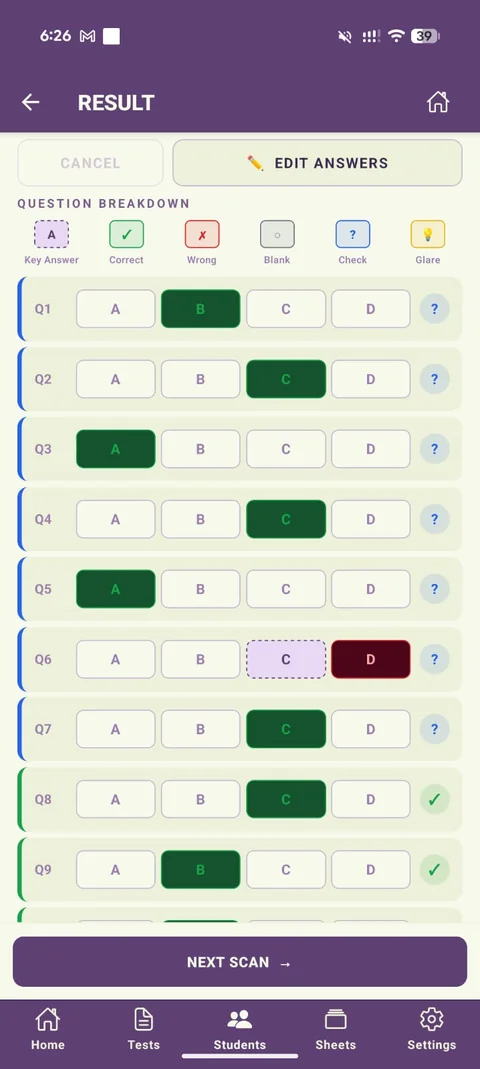
Sometimes a whole run of questions comes back flagged for Check at once, usually because that part of the sheet scanned a little unevenly rather than because the marks themselves are unclear. This result flagged seven questions (Q1 through Q7) and still came back 18/20 (90%). Opening the breakdown shows why: six of the seven were already detected correctly and just needed a look before confirming - most flags turn out to be this kind of false positive. Q6 is the exception, a genuine wrong answer (the key is C, the student picked D), which is why it's worth checking each flagged question instead of confirming the whole batch without looking.
Correcting a student's ID number is a separate action from editing answers - see How to Use the Student ID Section for that.