Once your test and answer key are set up, scanning student sheets is quick - a good scan starts with good lighting.
CamGrader reads bubble sheets using your device's camera, so lighting makes a real difference in accuracy:
Scan in a well-lit room with even, diffuse light - daylight near a window or standard classroom overhead lighting both work well. Avoid harsh, directional light (like a single desk lamp) that casts a shadow across the sheet.
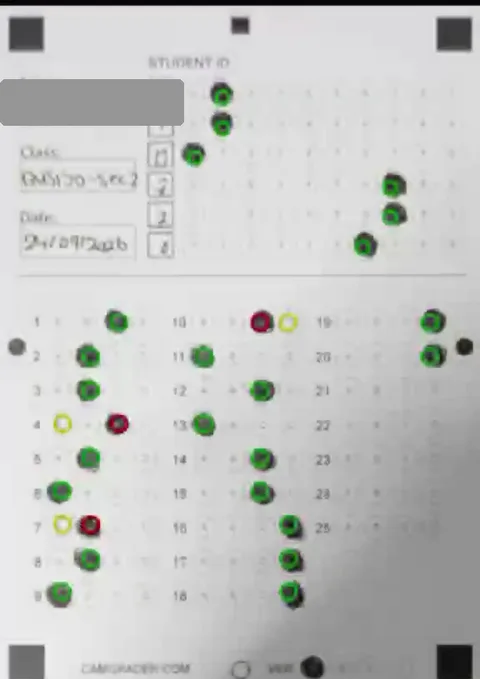
Check your corners, not just the overall light. A shadow doesn't need to cover the whole sheet to cause a problem - even a shadow over just one corner (from your hand, the phone itself, or a nearby light source) is often enough to trigger "One or more corner markers were difficult to detect," since CamGrader needs a clear view of all four corners to align the sheet. If you see that message, tap the scan thumbnail on a result's page to zoom in and check each corner individually before assuming the room is too dark - see the example below.
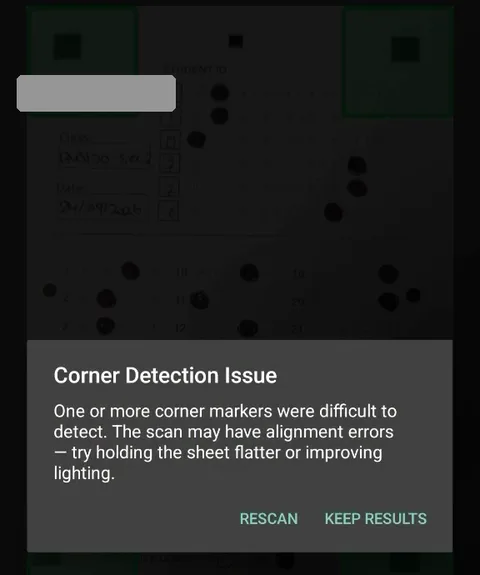
If CamGrader can't get a clear fix on all four corner markers, a Corner Detection Issue dialog appears right after the shutter fires, with two options: Rescan (deletes this attempt so you can try again - recommended whenever the student is still there) or Keep Results (saves it anyway, for example if the sheet is damaged or the student has already left).
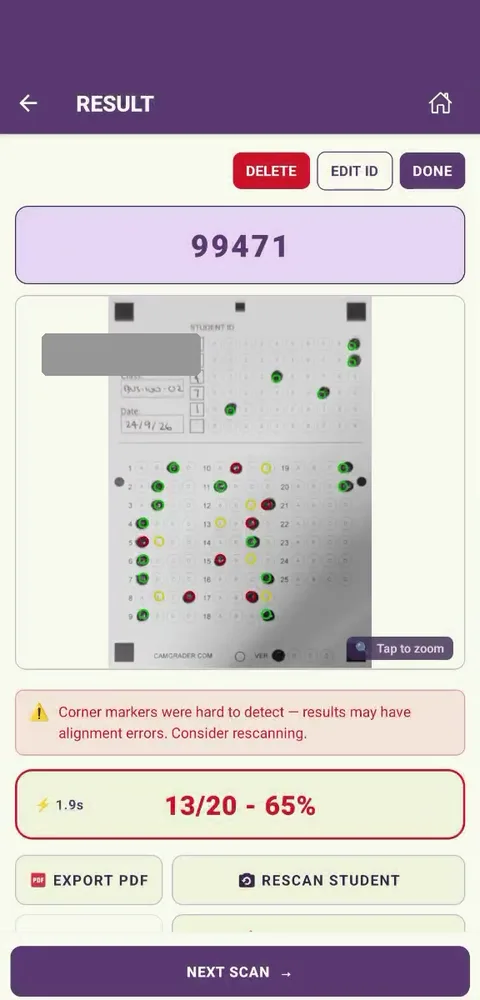
Choosing Keep Results flags that student's result: a warning banner appears at the top of their Results page ("Corner markers were hard to detect - results may have alignment errors. Consider rescanning."), and the score is shown in red as a reminder to double-check it.
Flagged results are also easy to find later from the test's student list - look for the red marker on the result thumbnail.
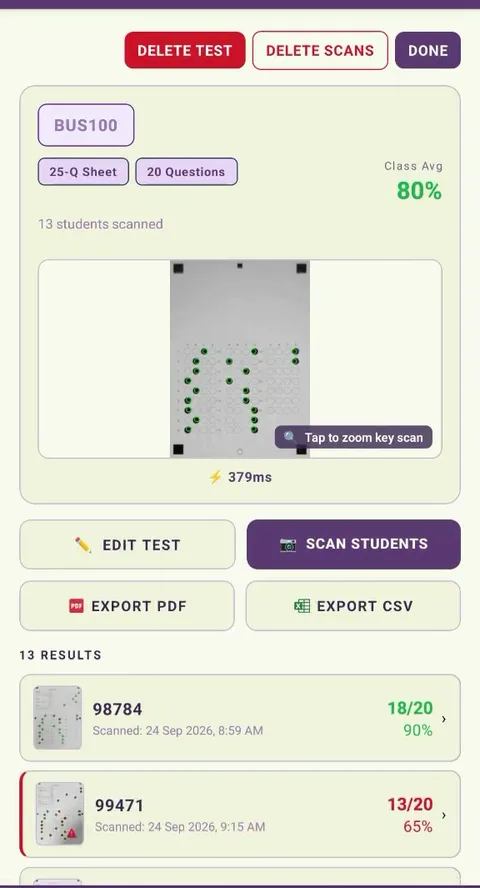
Do lay the sheet flat on a non-glossy surface, keep the whole sheet inside the camera frame, and hold your device steady and parallel to the sheet.
Don't scan at a steep angle, allow glare from overhead lights or windows to wash out a section of the sheet, or scan a sheet that's heavily creased or folded across the bubble grid.
Open the test, tap Scan, and line the sheet up inside the frame. CamGrader will detect the sheet automatically and capture it - hold steady for a moment while it processes.
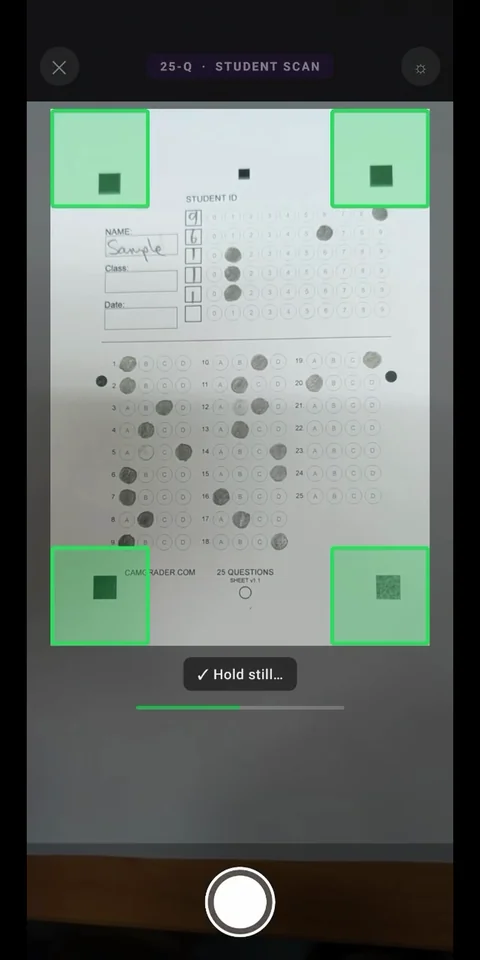
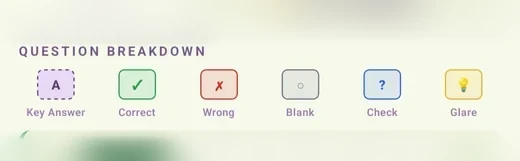
After a scan, each student's results page includes a Question Breakdown grid that color-codes every question:
Green - answered correctly. Red - answered, but incorrect. Gray - left blank. Yellow - detected as blank, but there may be faint glare or a light mark worth a second look. Blue - the mark was ambiguous (for example, two bubbles filled in) and needs a manual check.
On a red or blank question, you may also see a dashed outline around a different bubble - that's the correct answer, shown for quick comparison so you don't have to look it up separately.
If a question is flagged blue or yellow, you can tap it to review the actual mark and correct it if needed - see Editing Student Results.