The Key Generator at camgrader.com/keygen lets you build a scannable answer key without printing and hand-bubbling a blank sheet.
Visit camgrader.com/keygen and choose the bubble sheet format that matches the one you'll use with your class (for example, by number of questions).
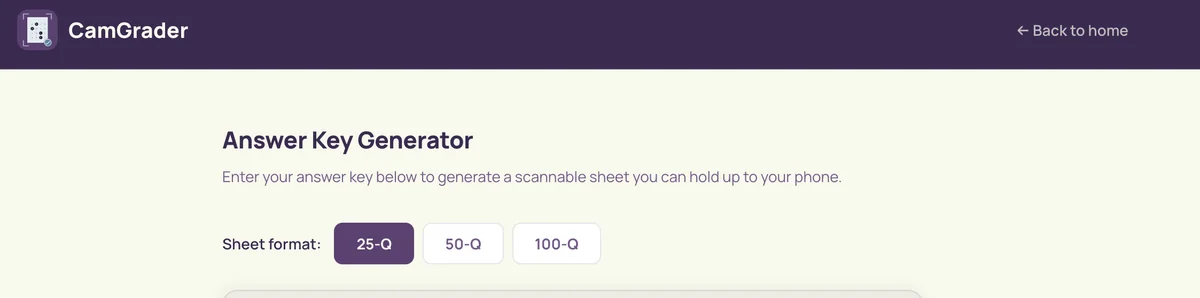
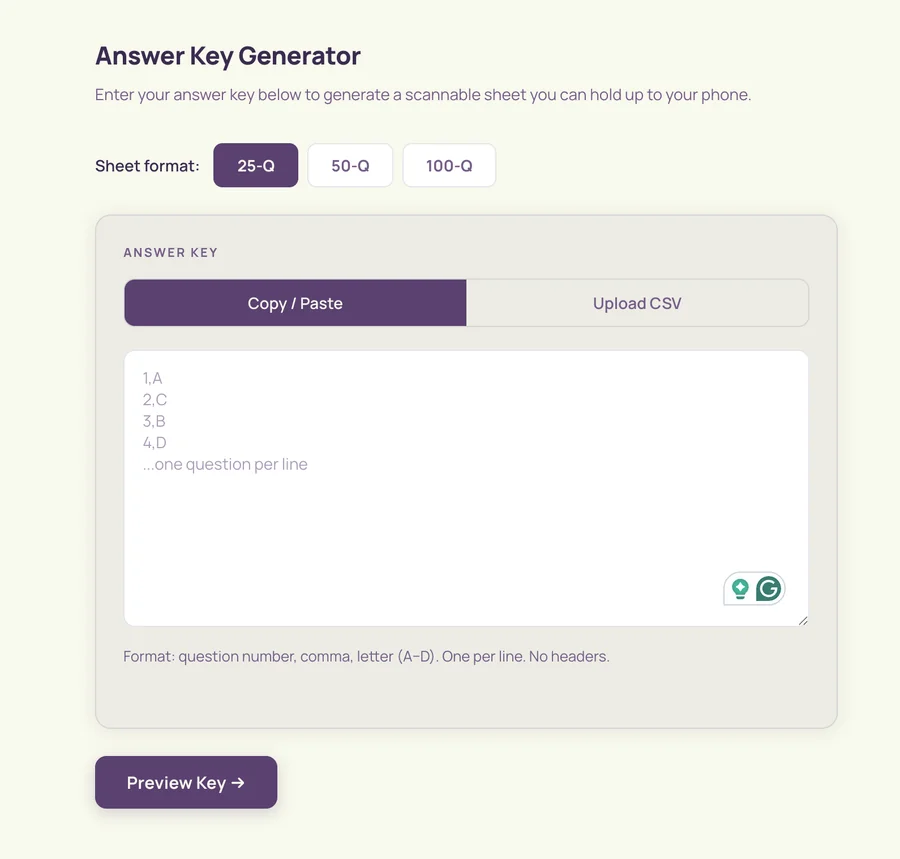
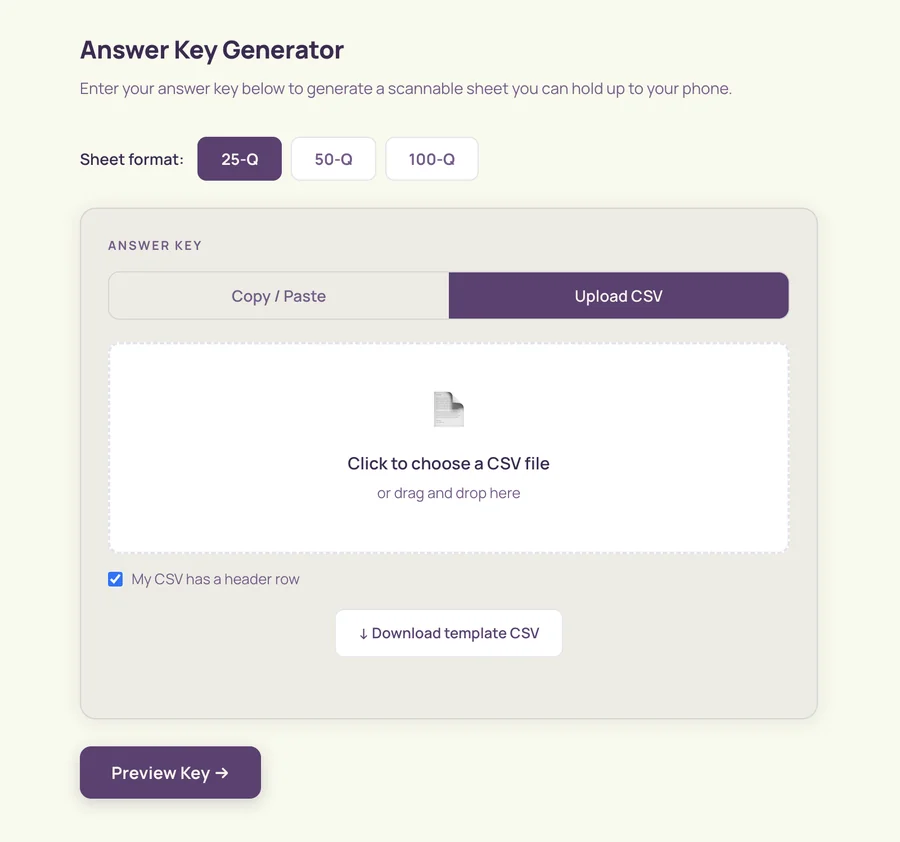
Type or paste in your answer key, or upload a CSV. The Key Generator accepts however many answers your test actually has - you don't need to fill every row on the sheet format you picked.
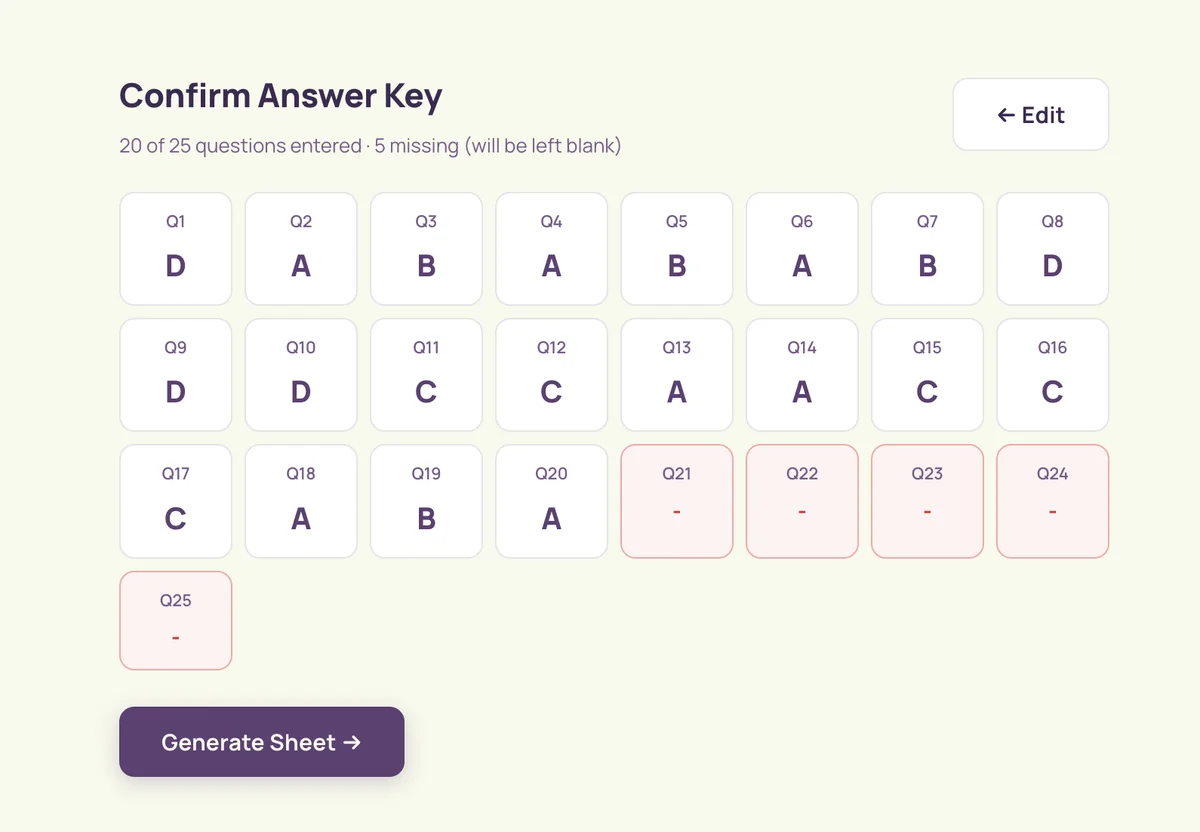
Before generating the sheet, CamGrader shows every question so you can double-check it against what you entered. Anything left blank is flagged so you can catch a missed question before you scan.
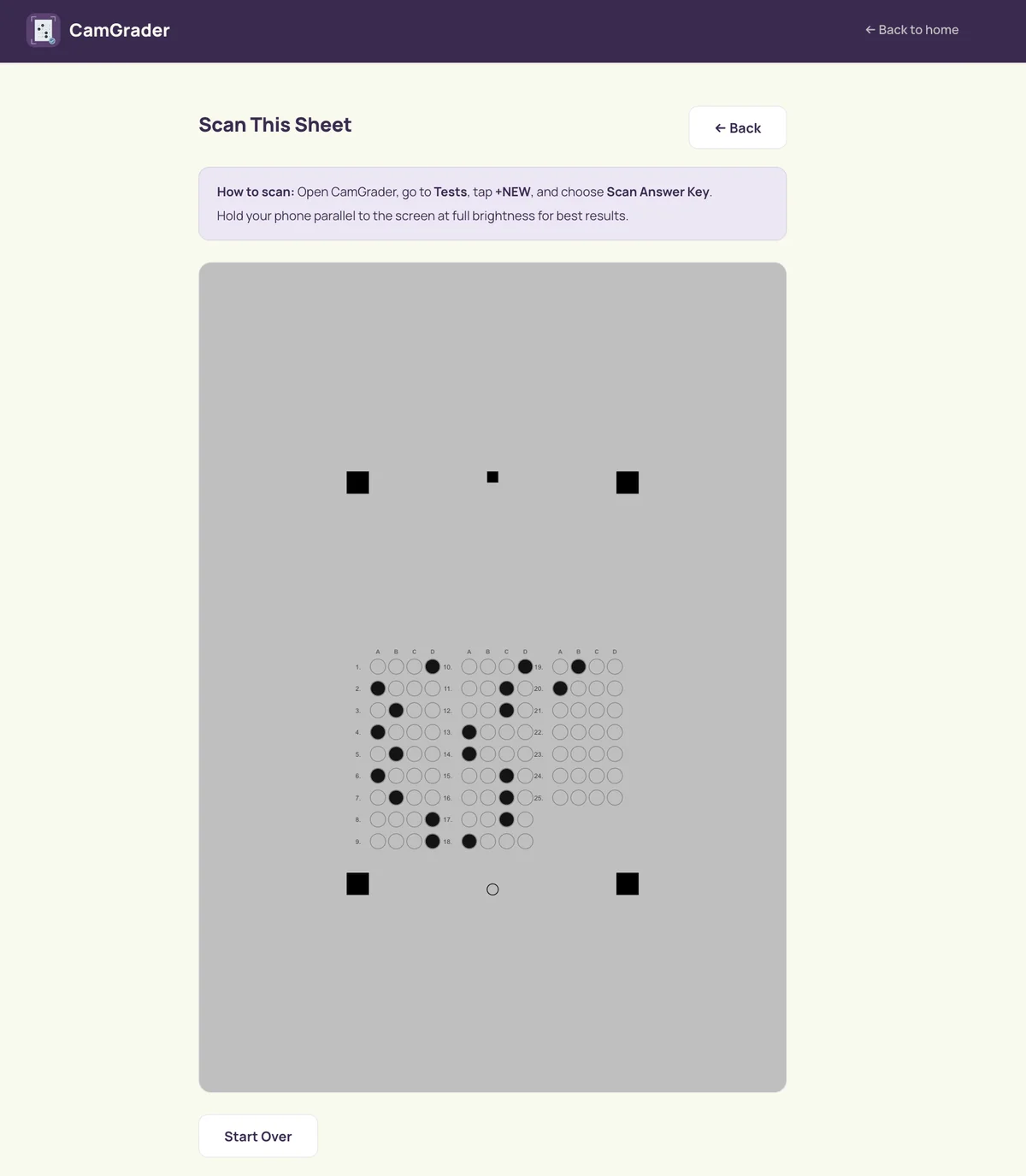
The Key Generator renders an on-screen answer sheet with the correct bubbles already filled in. From here you can either scan it directly off your screen, or print it and scan the printout.
Back in the CamGrader app, start a new test, choose Scan Answer Key, and scan this sheet the same way you'd scan any bubble sheet.
That's it - no hand-bubbling a blank key sheet required. See Create Your First Test for how this fits into setting up a full test.